01 Opening files and folders
Four ways to open a file, all leading to the same place:
- Drag the file onto the window.
- "Open file" button in the top right, or ⌘O · Ctrl+O.
- From the system's file manager:
Open With → ProgViewer, or double-click if ProgViewer is the default app for that type. On Linux, this applies to the
.debpackage; the AppImage does not register itself with the system. - Recently opened, on the start screen or under File → Open Recent.
Open as many as you like: each file gets a tab, and dragging several at once opens one tab for each.
Folders
In the installed app, the "Open folder" button in the header picks a folder — dragging a folder onto the window does the same. It shows up in the side list, on the left, and several folders can be open at once.
- Click a folder to expand or collapse it, and a file to open it in a tab.
- Two sections: Folders, one per open folder, and Files, with the open files that sit outside them. With no folder open, the list only appears if ⚙ → "List loose files in the sidebar" is on.
- Sort and filter (the ⇅ button at the top of the list): by name (A–Z or Z–A) or by file type, and Folders only.
- Context menu (right-click): on a folder, expand or collapse, copy path and show in the file manager; on a top-level folder, also close folder and open folder in new window. On a file, the tab menu's items plus open in editor (§8).
- The list follows the disk: in expanded folders, a file created, deleted or renamed appears or vanishes by itself within a few seconds. A folder that can no longer be read gets a ⚠️.
- Files ProgViewer doesn't display (images, PDFs, executables) stay out of the list. A folder with many items shows the first ones and a show more button.
- « collapses the list and the » tab on the edge brings it back; the choice is kept, as with ⚙ → "Open the file list by default". Drag the edge to adjust the width.
- An open folder goes into the start screen's recents.
- To find a file by name inside the open folders, use search (§4).
Open with the system app
When the file isn't text — a PDF, a video, an image — ProgViewer shows a screen saying it doesn't display that format, with a button to open it in the system's default app. It only hands documents, images, media and archives to the system: a program is never launched, even if you ask.
02 Tabs
- Switch tabs: click one, ⌘1…9 · Ctrl+1…9 to jump to the Nth, or ⌥← · Alt+← / ⌥→ · Alt+→ to cycle.
- Close: the tab's
✕, or ⌘W · Ctrl+W. - Tab context menu (right-click): reload from disk, copy path, show in the file manager, close others, move to new window.
- Reorder: drag the tab along the bar.
- Move to another window: drag the tab onto it. Dropped outside the bar, it becomes a new window.
Hovering a tab shows the file's full path.
There is a ceiling of 20 tabs. Past that, the least recently used one leaves on its own.
03 Reading comfortably
| Feature | How |
|---|---|
| Zoom | ⌘+ · Ctrl++, ⌘− · Ctrl+−, ⌘0 · Ctrl+0 back to 100%. Or type the value in the header field. |
| Theme | ⚙ → Theme: System, Light or Dark. ⌘⇧L · Ctrl+Shift+L toggles light/dark. |
| Code theme | ⚙ → Code theme: can differ from the rest of the app. |
| Line wrap | ⚙ → "Wrap long lines", or ⌘⇧B · Ctrl+Shift+B. |
On System, the app follows the system appearance live — change it there and it changes here, with no reload.
04 Finding what matters
Search
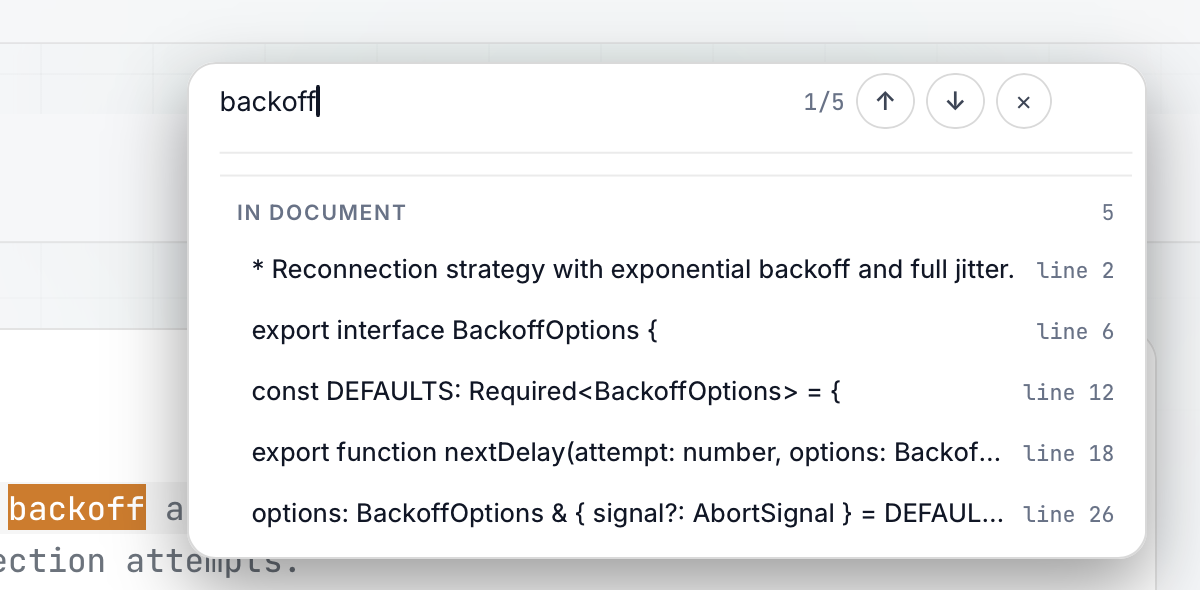
⌘F · Ctrl+F opens the search bar. It searches the document and, when there is something to show, two more places — all in a results list below the field:
- Files: with a folder open, the files whose name contains the term, across all open
folders, including subfolders you haven't expanded yet. Click to open. While search is
open, the side list is filtered by the term too. In a very large folder the scan stops at a
limit and the count gets a
+: refine the term. - In other tabs: the other tabs where the term appears, with how many matches each one has. Choosing one activates the tab and repeats the search there.
- In document: the passages in the document on screen, with the line of each.
↑/↓ move through the list and Enter opens the chosen item. With no item chosen, Enter goes to the next match in the document and ⇧Enter · Shift+Enter to the previous. Esc closes it. Search ignores case and accents.
Search crosses syntax highlighting and finds text inside collapsed blocks — when a match is inside a fold, the fold opens to reveal it.
Go to line
Type :200 in the search bar to jump straight to line 200. It doesn't count as a search
match, and a line that doesn't exist is ignored quietly.
Outline
Markdown files get a clickable outline of their headings. Toggle it in ⚙, with the ☰ button in the header, or with ⌘⇧S · Ctrl+Shift+S.
Folding blocks
In code files, the line-number column shows a trigger next to lines that open a block. Click to collapse.
- Collapse or expand everything: the button in the block's top-left corner, or ⌘⇧E · Ctrl+Shift+E.
- Keyboard: Tab reaches the fold column, ↑/↓ move between triggers, Enter or Space folds.
- Fold state belongs to the tab: switching away and back undoes nothing.
Copying a selection that crosses a fold takes the hidden content with it.
05 Selecting and copying
- Copy the whole block: the Copy button, which appears when you hover the block.
- Copy only the selection: select and use Copy selection, or ⌘C · Ctrl+C.
- Select whole lines: click and drag in the line-number column.
Line numbers and fold triggers never end up in what you copy — they live outside the text precisely for that reason.
06 Images and links
Both are switches in ⚙, and apply to every file:
- Show images (⌘⇧I · Ctrl+Shift+I) — off, an image in Markdown appears as
in text. - Enable URLs (⌘⇧U · Ctrl+Shift+U) — off, addresses become plain text, with no colour and no click.
- Enable file links (⌘⇧K · Ctrl+Shift+K) — the same for references to files.
Local images work: ProgViewer reads images from the open file's folder and its subfolders. Remote images are never fetched — they become a chip with the alt text, and nothing leaves for the internet.
Clicking a file link opens it in a new tab. Clicking a web link opens your system browser — the page is never loaded inside ProgViewer.
07 Preview
Some formats get a Preview button (⌘⇧V · Ctrl+Shift+V) that shows the result instead of the code:
| Format | What you see |
|---|---|
.html |
The rendered page |
.svg |
The drawing |
.css |
The declared colour tokens and a sample page with the CSS applied |
.scss .sass .less .styl |
The declared variables (not compiled — see §14) |
The preview runs sandboxed, in a frame that cannot reach the rest of the app.
08 Open in editor
In the installed app, ⌘E · Ctrl+E opens the tab's file in your code editor, at the line on screen. The same command is on the document header's Open in … button, under File → Open in Editor and in the context menu (right-clicking the text opens at the clicked line; in the side list, it opens the file at the top).
- Which line: with text selected, the first line of the selection; with search open, the line of the highlighted match; otherwise, the first fully visible line. In rendered Markdown it is the block at the top of the screen. Files over 20,000 lines open at the top, and JSON (shown reformatted) opens at the matching line of the original file when it can be recognised — otherwise at the top, with a notice.
- First use: the app asks which editor to use among the ones it found on this computer (or "Choose another app…"). If it found only one, it uses it and tells you where to change.
- File → Open With opens once in another editor without changing the preference.
- Preferences › Files › Editor: the list of editors found, "Choose another app…", "Always ask", "Refresh list", "Test" (opens a sample file at line 3) and "When opening in the editor, open the project when there is one" — off by default; when on, the editor also gets the open folder or the file's repository.
- The app never opens the file in the system's "default app" nor goes through a terminal: if the editor is gone, it says which one and offers to choose another.
09 Marks
In the installed app you can mark lines with a note — and, if you like, a suggested replacement — without touching the file. Select lines by clicking or dragging on the line numbers and use right-click → Mark lines…, or ⌘⇧M · Ctrl+Shift+M (with no selection it marks the line on screen).
- On screen: a marked line gets a bar in the margin; a folded block hiding a mark says how many it holds; in rendered Markdown the marked block gets the bar on its left.
- Marks panel: the second tab of the side panel (the « tab on the right edge). ↑/↓ choose, Enter goes to the line, ⌫ · Delete deletes (with Undo for a few seconds) and E edits. The selected mark shows its suggestion as a difference: current text struck through, suggested text underlined.
- The file changed: the mark follows the text. If the passage is gone, it moves to Not located, with the original text — select the new lines and use Reposition, or delete it. No mark disappears on its own.
- Renamed the file? When you open the new name, the app offers to bring the old marks.
- In sensitive files (
.env, keys) suggestions are off and the text is not stored. Files over 20,000 lines have no marks; neither does JSON shown reformatted (the lines on screen are not the file's). - Marks stay on this computer, outside the file. To delete them all: Preferences › Files › Delete all marks.
10 Quick editing
The Edit button in the header (or ⌘⇧D · Ctrl+Shift+D) swaps the view for the file's text, editable right there. With no pending change, the header shows Done (or Esc), which goes back to the view. As soon as you change the text, Done gives way to Save (or ⌘S · Ctrl+S), which writes and keeps editing, and Cancel, which discards the changes and goes back to the view — the "Changes discarded" note offers Undo for a few seconds, in case the click was a mistake. With pending changes, Esc does not leave: the app warns and stays. The first time, the app asks whether it may edit files in that folder until it closes; the preference lives in Preferences › Files › Allow editing files in this app.
- Markdown edits the source; JSON, the original file (not the reformatted view).
- Brackets and quotes close on their own, and words from the file itself are suggested as you type.
- While editing, images, links, wrapping, preview and folding don't change by shortcut. Marking lines works while the text matches the file on disk; with pending changes, the app offers Save and mark, and the mark anchors to the saved text.
- If the app closes without saving (a crash, a power cut), the text isn't lost: a few
seconds after you stop typing — and at least every 30 s of continuous typing — the app keeps
a draft. When you reopen the file, it offers Recover or Discard; if the file changed
since then, it warns you first. Drafts older than 24 hours are deleted. Sensitive files
(
.env, keys, credentials) get no draft. - If the file changes on disk while you edit (another program saved it), the app warns you and offers See differences, Reload and discard or Continue. When you overwrite, the version on disk becomes a backup copy; the last 3 of each file are kept, in Preferences › Files › Open backups folder. If the file was moved or deleted, Save to… writes the text somewhere new.
- The file is saved in the encoding and line endings it had (UTF-8, UTF-16 or the legacy encodings). If you type a character the encoding can't hold, the app offers Save as UTF-8; if the file mixes line endings, it says how many lines change before making them uniform.
- The same file can only be edited in one window at a time.
- Not editable in the app: a file with bytes that could not be decoded, a file over 25 MB and a read-only file — the app offers to open it in your editor.
- Files that are never editable here, for safety: shell startup files (
.zshrc,.bashrc,~/.config/fish, PowerShell profiles…), git configuration (~/.gitconfig,~/.config/git), credentials (~/.ssh,~/.gnupg,~/.aws,~/.kube,~/.docker,.netrc,.git-credentials,.npmrc,.pypirc), what the system runs at login (~/Library/LaunchAgents,~/.config/autostart,~/.config/systemd/user, the Windows Startup folder) and the inside of.git,.hg,.svnandnode_modules/.bin. A malicious document exploiting the app could use those files to run commands or steal access. On those files the Edit button is already disabled; to change them, use Open in editor. The full list is in Preferences › Files › See list. - Your whole home folder is never unlocked at once: with it open as a folder, the app asks file by file. Its subfolders are unlocked as usual.
11 The file changed on disk
ProgViewer checks the open file every 1.5 seconds. If it changed, the screen updates by itself, keeping your reading position.
- If the file is deleted or renamed, the app warns once and stops checking.
- The tab's
⟳button (or ⌘R · Ctrl+R) forces a reread and restarts the polling. - While the window is hidden, polling rests — it won't hit the disk in the background.
12 Printing
⌘P · Ctrl+P, the 🖨 button in the header, or File → Print….
Only the document reaches the paper: no header, no tabs, no search, no outline. White background, 12 mm margin, and external links with their URL printed alongside. Collapsed blocks print in full — folding is a reading aid, not a content cut.
To produce a PDF, choose to save as PDF in the system's print window.
13 Multiple windows
File → New Window (⌘N · Ctrl+N) opens another window with its own set of tabs. Drag tabs between them.
Under ⚙ → "Open files in" you choose whether a new file arrives as a tab or as a new window. The choice also applies to what comes in from the file manager and to the recent list.
Each window remembers its position and size, and returns there when the app reopens.
14 Known limits
None of this is a defect: they are choices, and each announces itself on screen when it acts.
A large file degrades features, never content.
| Situation | What changes |
|---|---|
| Line longer than 10,000 columns | The remainder sits behind a clickable marker |
| File with more than 10,000 lines or above 512 KB | Syntax highlighting is dropped (numbering and folding stay) |
| JSON above 5 MB | It is not re-indented |
| File with more than 20,000 lines | Simple mode: no numbering, no folding, no highlighting |
| File with more than 500,000 lines | The excess is not displayed — the only ceiling that cuts content |
| File above 25 MB | Does not open |
In simple mode, features that depend on line numbering — go to line, folding, selecting by column — do not exist, and say so when you try to use them.
CSS pre-processors are not compiled. .scss, .sass, .less and .styl show the
declared variables, not the result: compiling depends on the project's @import tree, and
ProgViewer shows each file on its own, without resolving that tree.
Embedded scripts never run in an opened file — neither in the document nor in the preview.
15 Privacy
- Nothing you open goes to the network. Not content, not file names, not usage statistics. The window is sealed for it: it can only talk to itself.
- The versions downloaded from progviewer.com only go online for what is listed below,
carrying nothing about you or your files. The Mac App Store version does not access the
network on its own.
- Updates: once a day, the app downloads from progviewer.com a public file describing the latest version. To turn it off, use Settings › Updates › Check for updates: the app then only looks for a new version when you ask.
- License (Windows and Linux): activating the license on a computer, and deactivating
it, connects once to
licencas.progviewer.com. It sends the key and a code derived from the computer's identifier (a digest that cannot be turned back into the identifier) — never the computer's name. After that, the license is checked offline.
- No file is modified unless you ask. ProgViewer only writes when you save in quick edit (section 10).
- What is kept on your computer are preferences (theme, zoom, switches, shortcuts) and the recent-files list — the paths only, never the content. Marks also stay here only, with the note, the suggestion and the marked passage (for sensitive files, neither passage nor suggestion).
- Remote images are never fetched, so whoever hosts an image never learns that you opened the file.